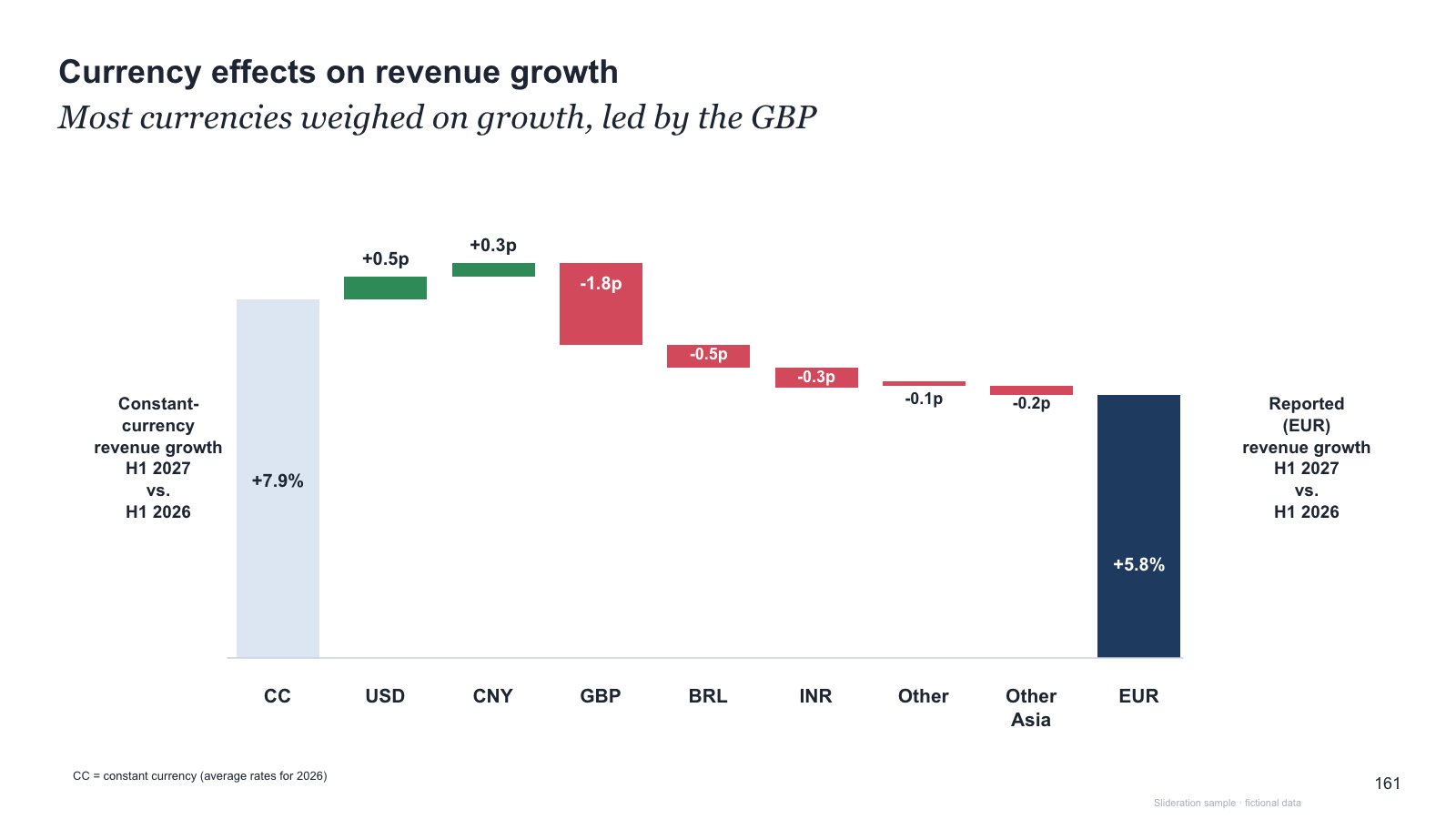
Currency-bridge waterfall with side labels for start and end growth rates
Download PPTX · 1 creditSLIDE LAYOUT LIBRARY
A waterfall — consultants usually call it a bridge — answers why did this number change? It starts at one value, shows each contribution that pushed it up or pulled it down, and lands on the new value. Done properly, the bars add up exactly.
Browse 4 editable PPTX examplesor drop an image here
Search is free · searches the whole library, not just this page
No screenshot to hand?
Reach for a waterfall when you have a starting figure, an ending figure, and a set of causes in between that you can quantify. Revenue bridges, cost walks, headcount changes and margin movements are the classic cases.
The test is arithmetic: if your contributions do not sum to the difference between start and end, you do not have a waterfall — you have a bar chart with a story attached. Add a residual bar and label it honestly, or pick a different layout.
A waterfall is also the right shape when the interesting part is the composition of a change rather than its size. “Revenue grew 4%” is one number; “volume added 9, price added 2, currency took away 7” is an argument.
Each one is redrawn from scratch with fictional sample data and comes as a native PowerPoint file — real shapes and text boxes you can edit, recolour and resize. Open an image for a full-size preview. Samples marked Free PPTX need no account; other downloads use 1 credit.
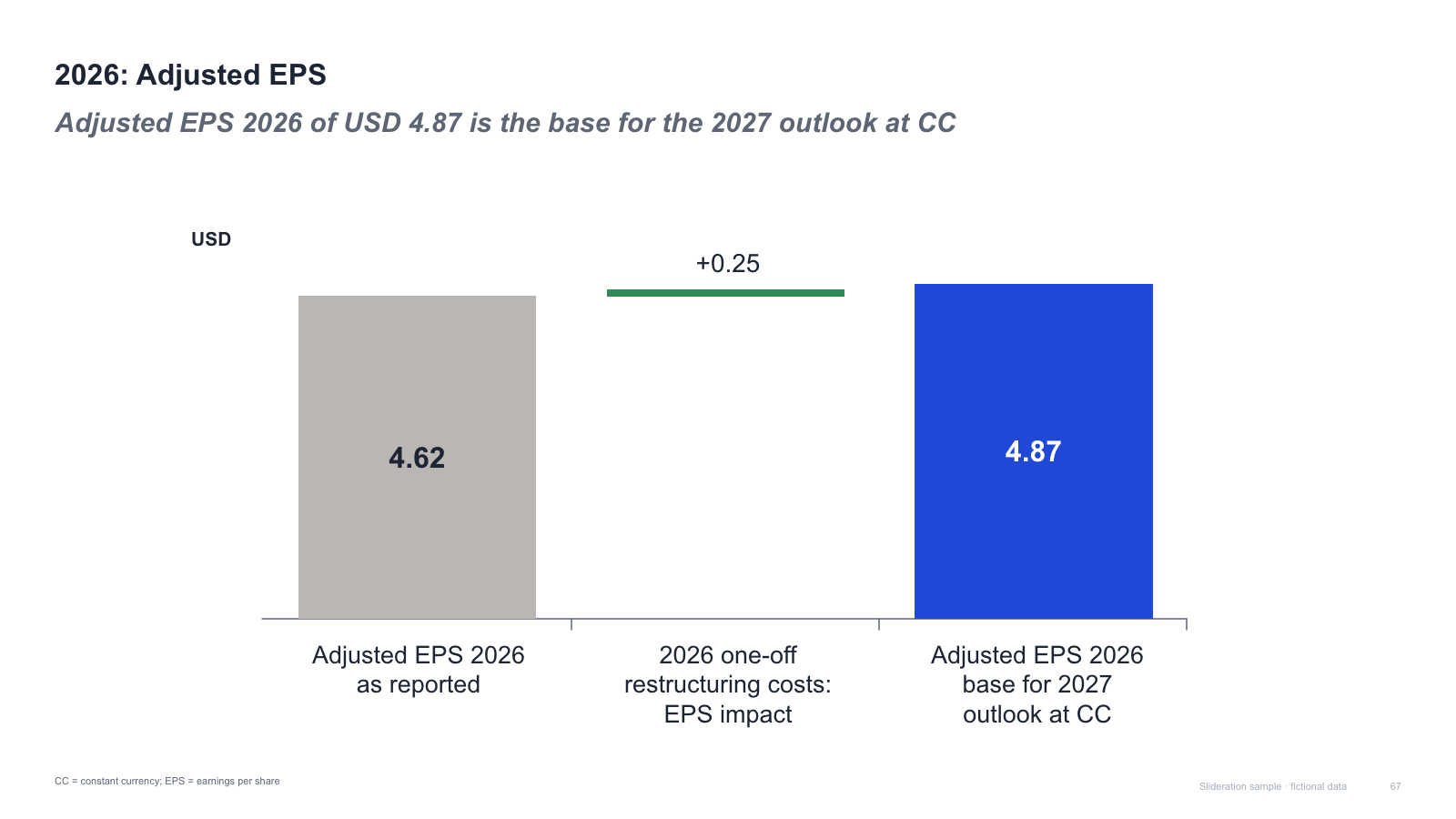
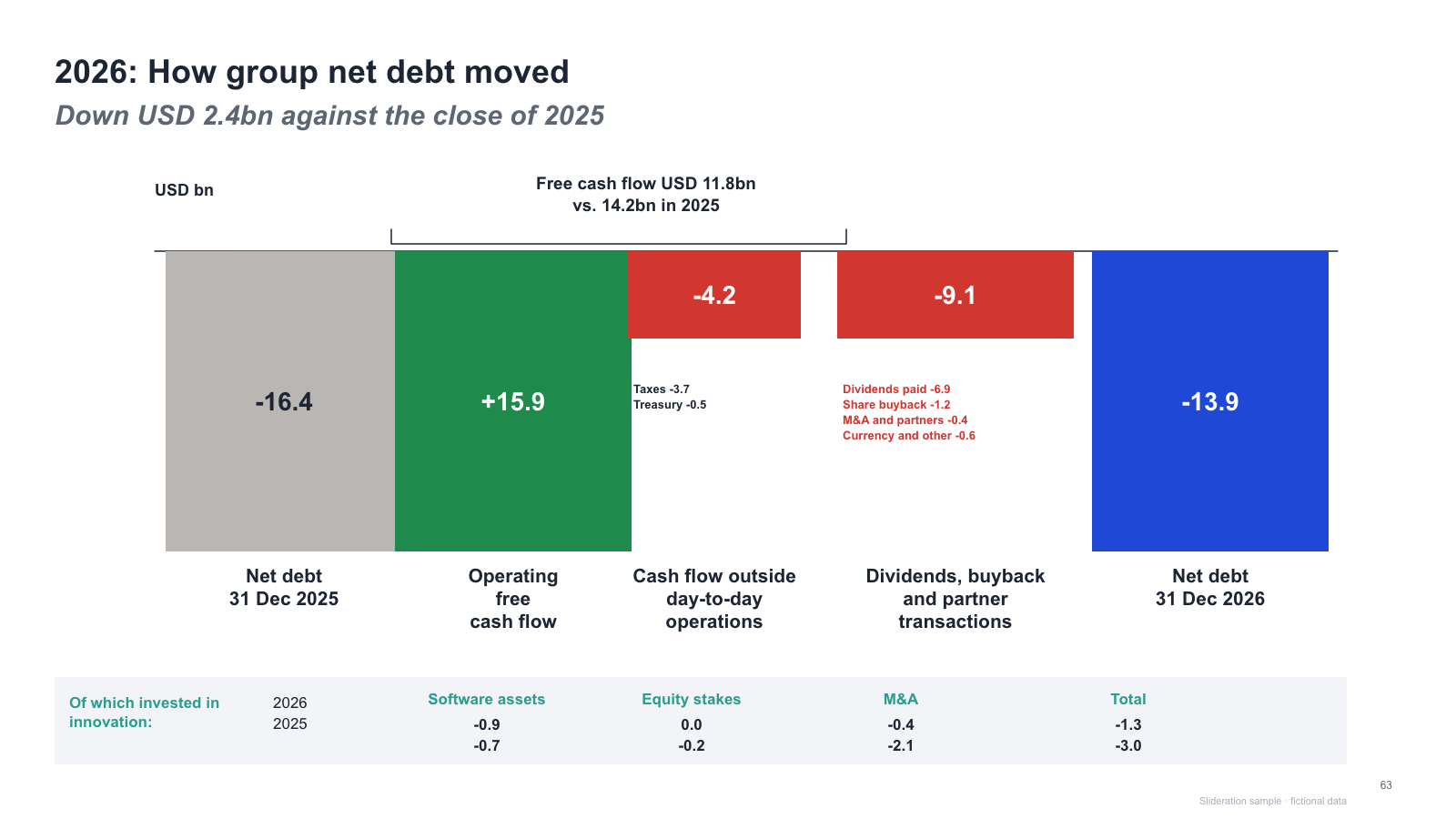
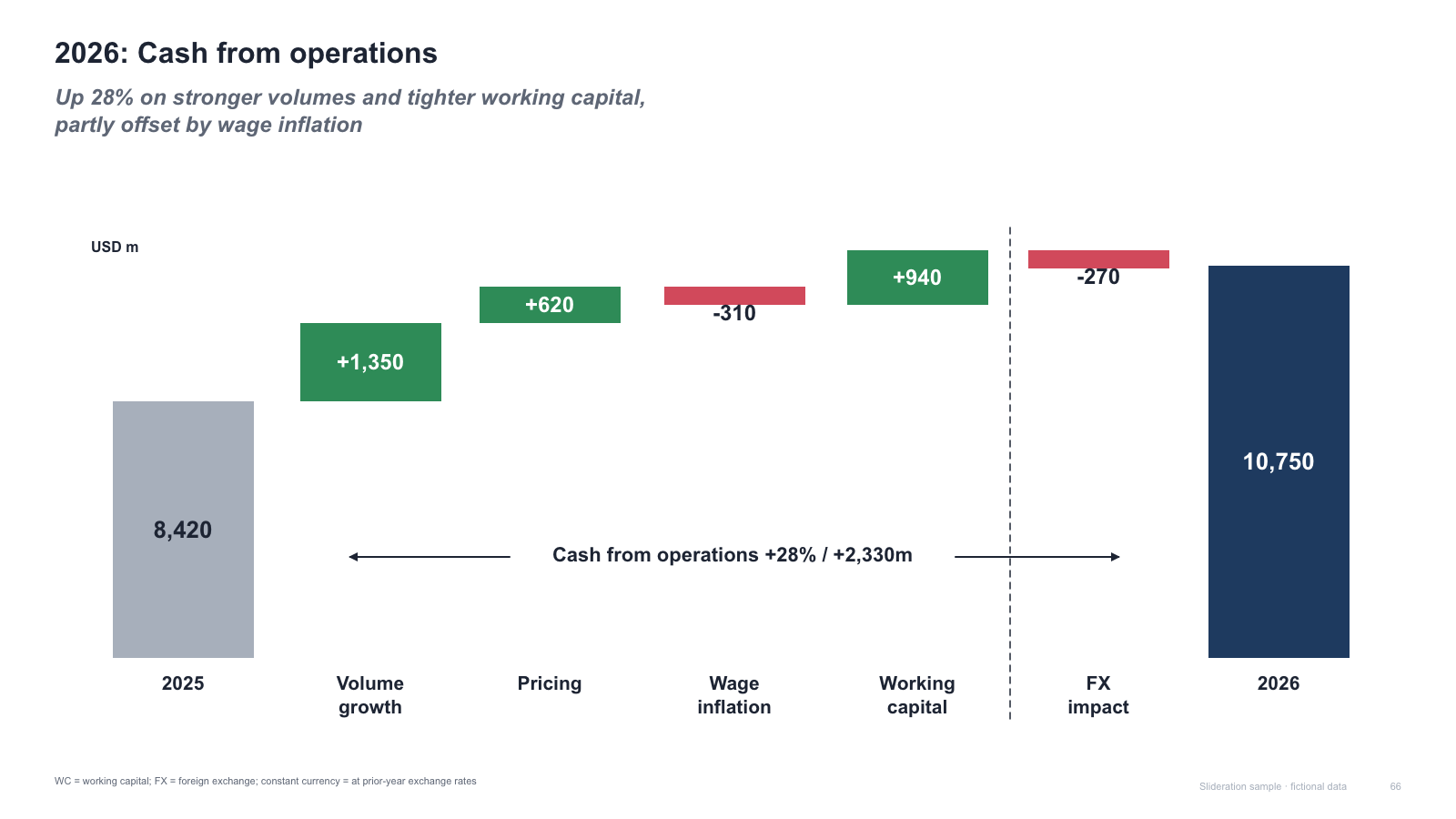
Matched by structure, not color. Download any layout as editable PowerPoint.
The library is small and growing. If nothing fits, try cropping to the part of the slide you care about.
Searching is free. 1 credit = 1 editable PPTX slide, and downloading the same slide again is free. New accounts get 2 free credits. Credits never expire.
One-time payments, no subscription. Prices in USD; taxes may apply at checkout. Payments are processed securely by our reseller and Merchant of Record, Creem. See the refund policy.
None — they are two names for the same chart. “Bridge” is the usual term in consulting and corporate finance, “waterfall” is the usual term in Excel and PowerPoint. Both describe a start value, signed contributions and an end value.
Two anchors and three to six steps. Past that the bars get thin, the labels collide, and the reader loses the arithmetic. Roll the small contributors into a single “other” bar.
Yes. Every layout on this page is drawn from ordinary PowerPoint shapes, so the bars, connectors and labels are all editable objects. You move and resize them by hand rather than binding them to data, which is fine for a slide that will not change every week.
Yes, and only by sign. One colour for up, one for down, a neutral for the start and end anchors. Colouring by category as well means the reader has to hold two legends in their head at once.