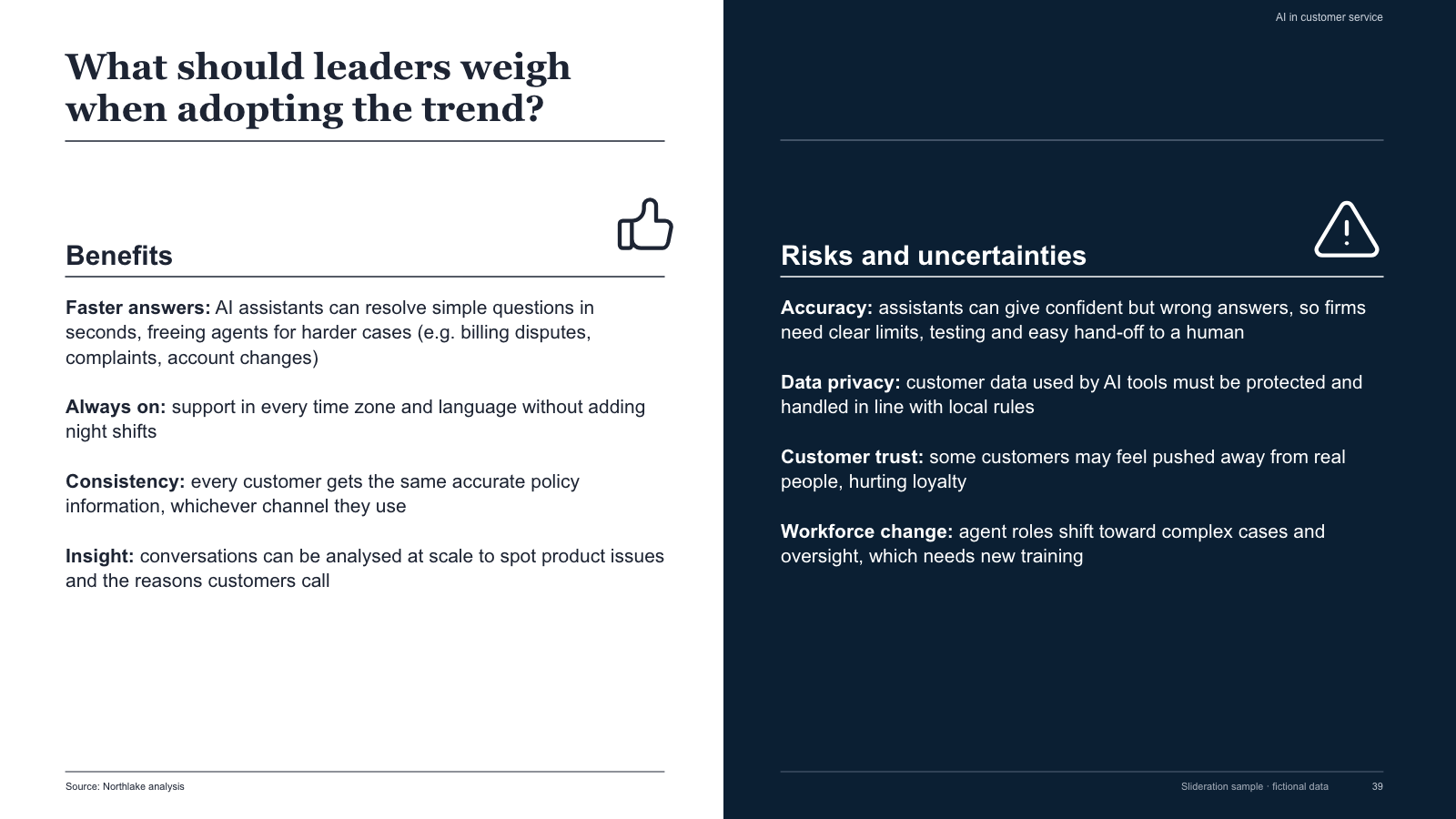
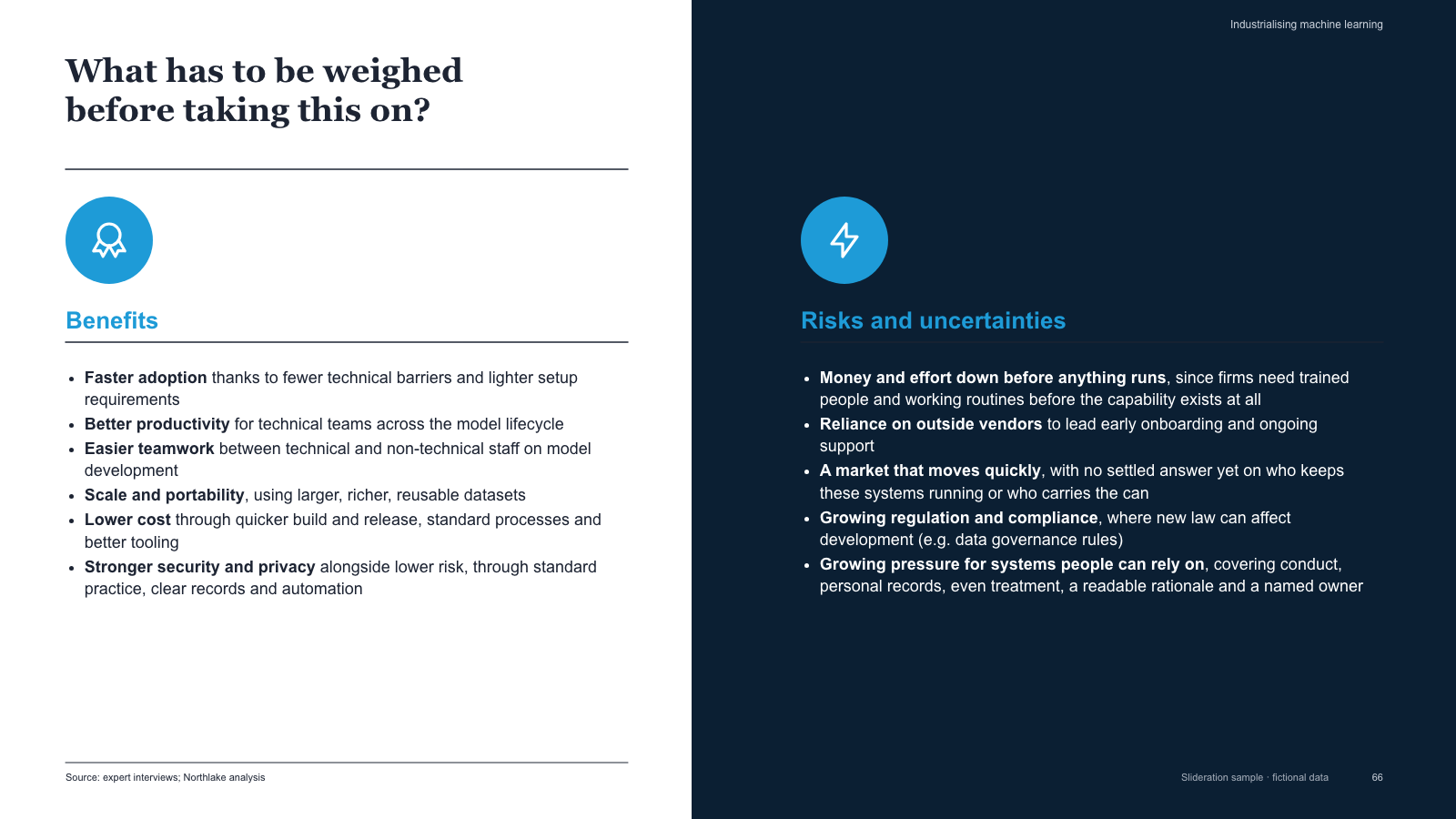
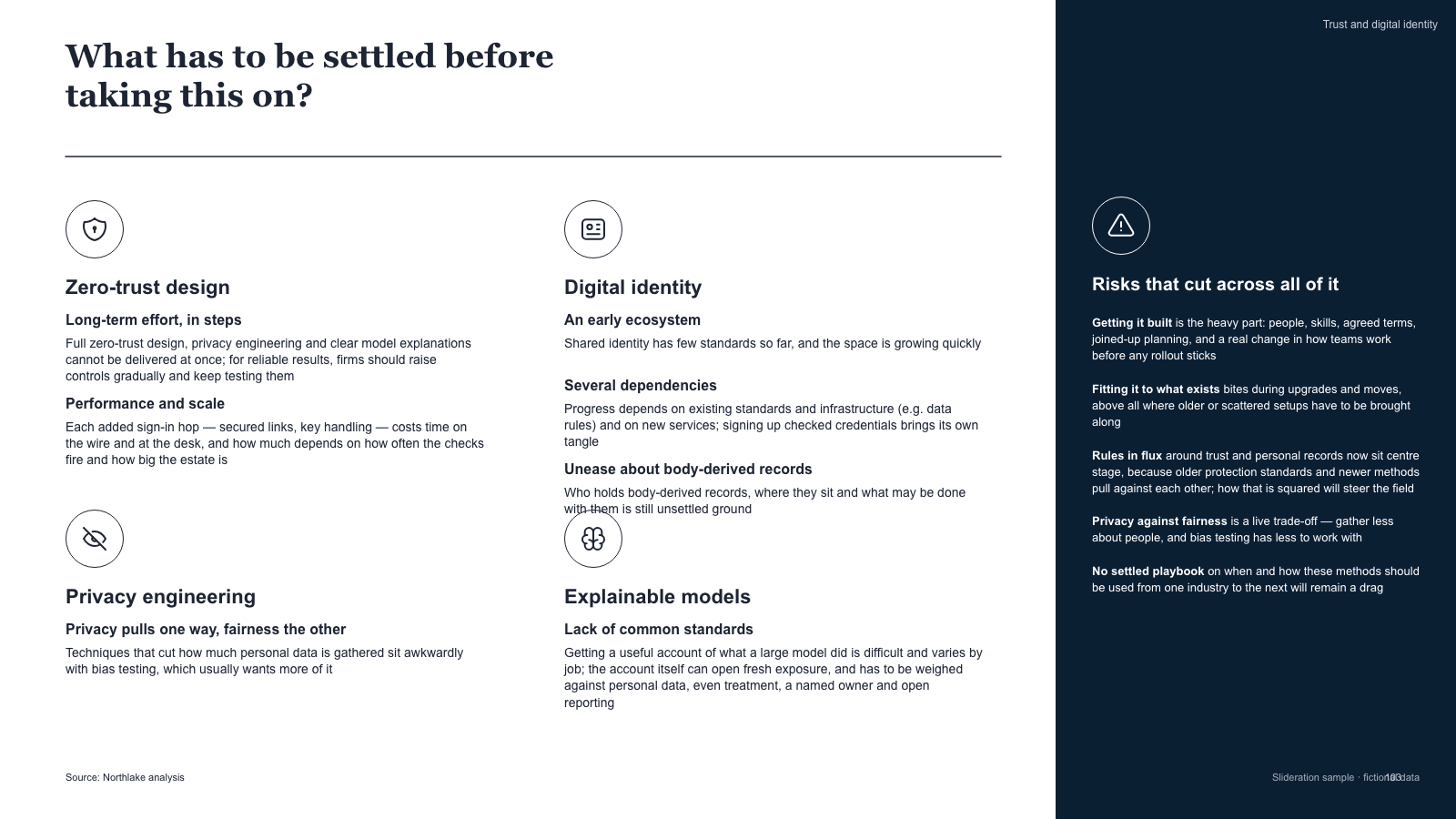
Split slide — white benefits column with serif headline and dark risks column, icon headings
Download PPTX · 1 creditSLIDE LAYOUT LIBRARY
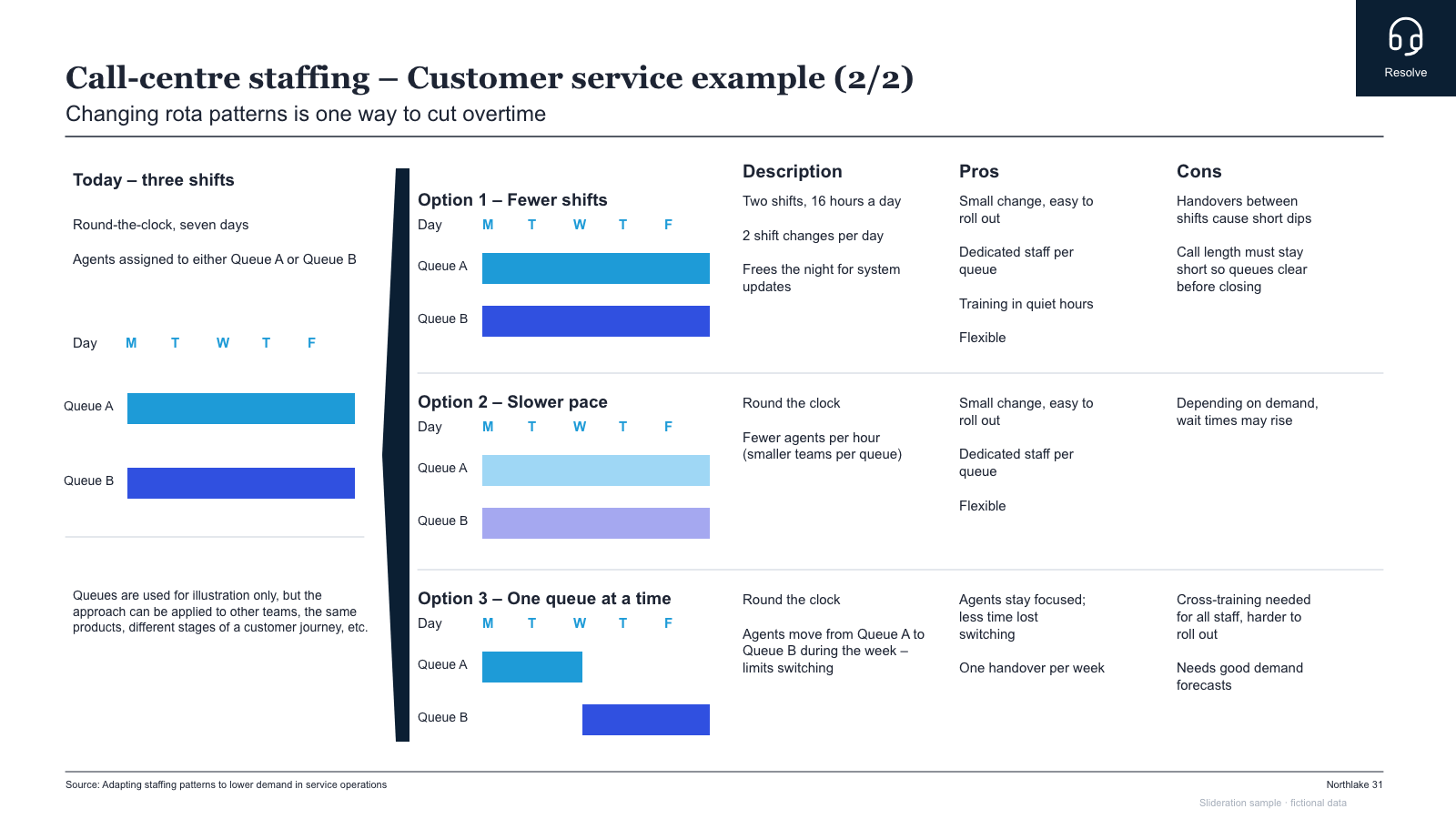
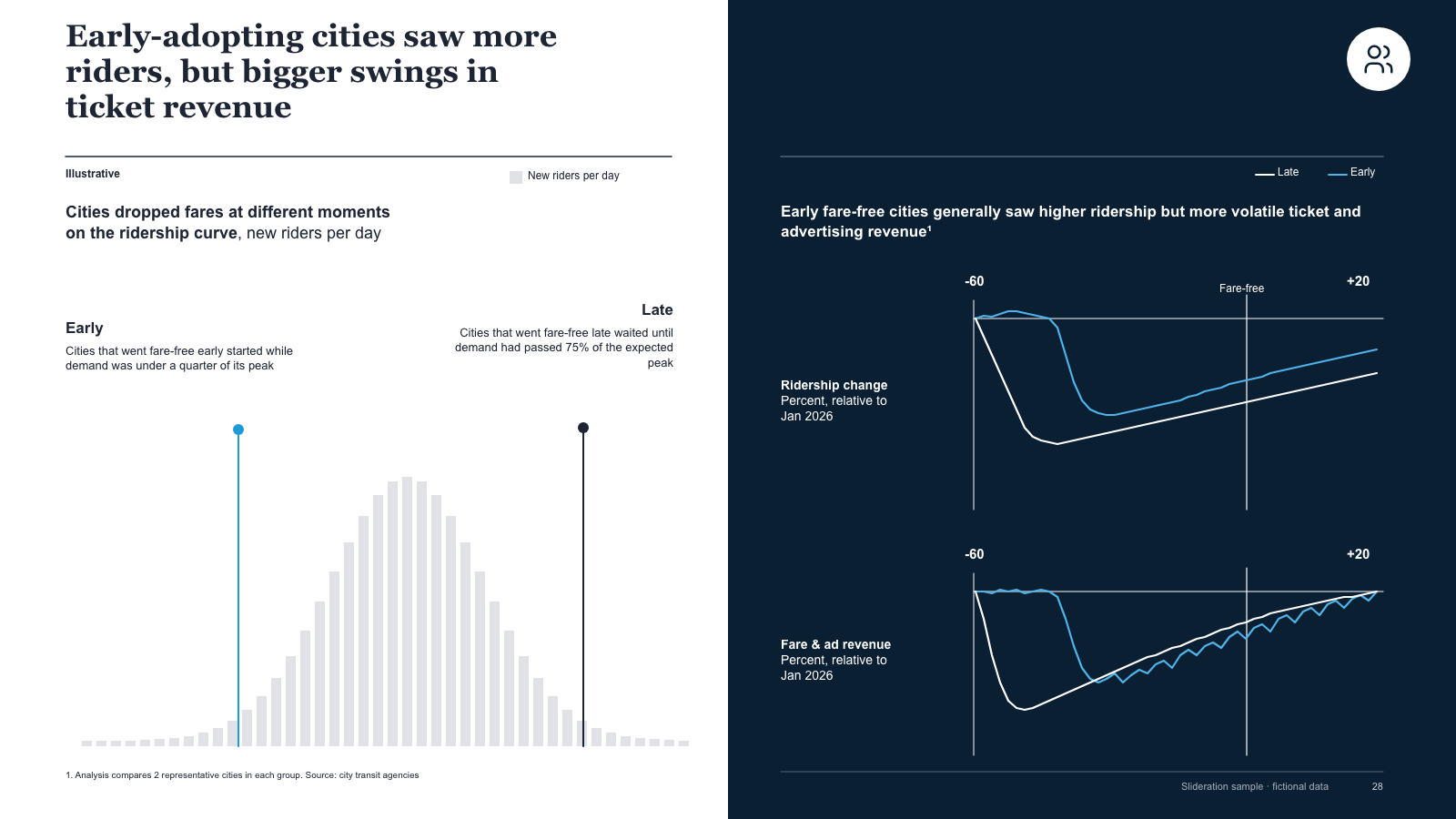
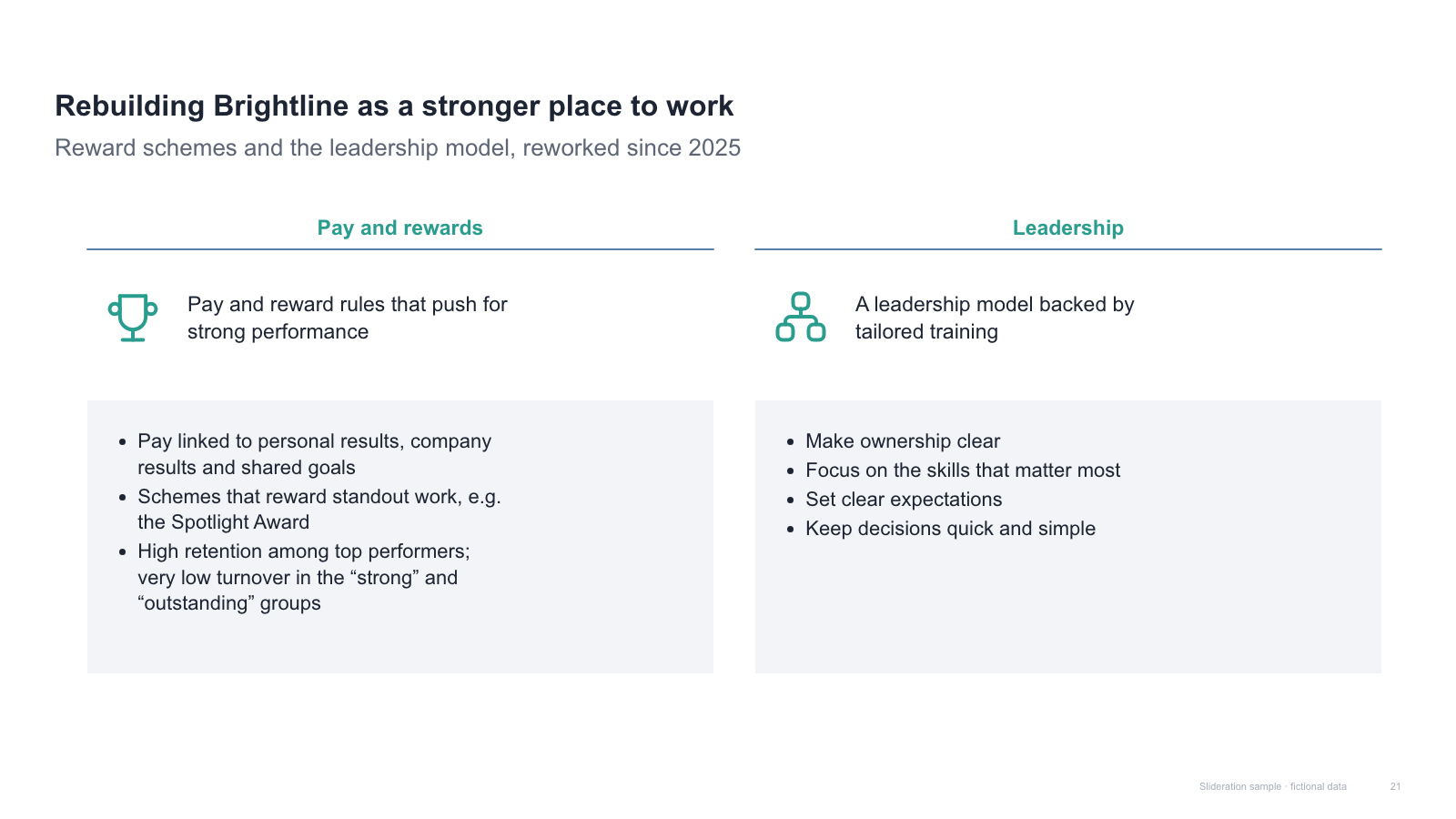
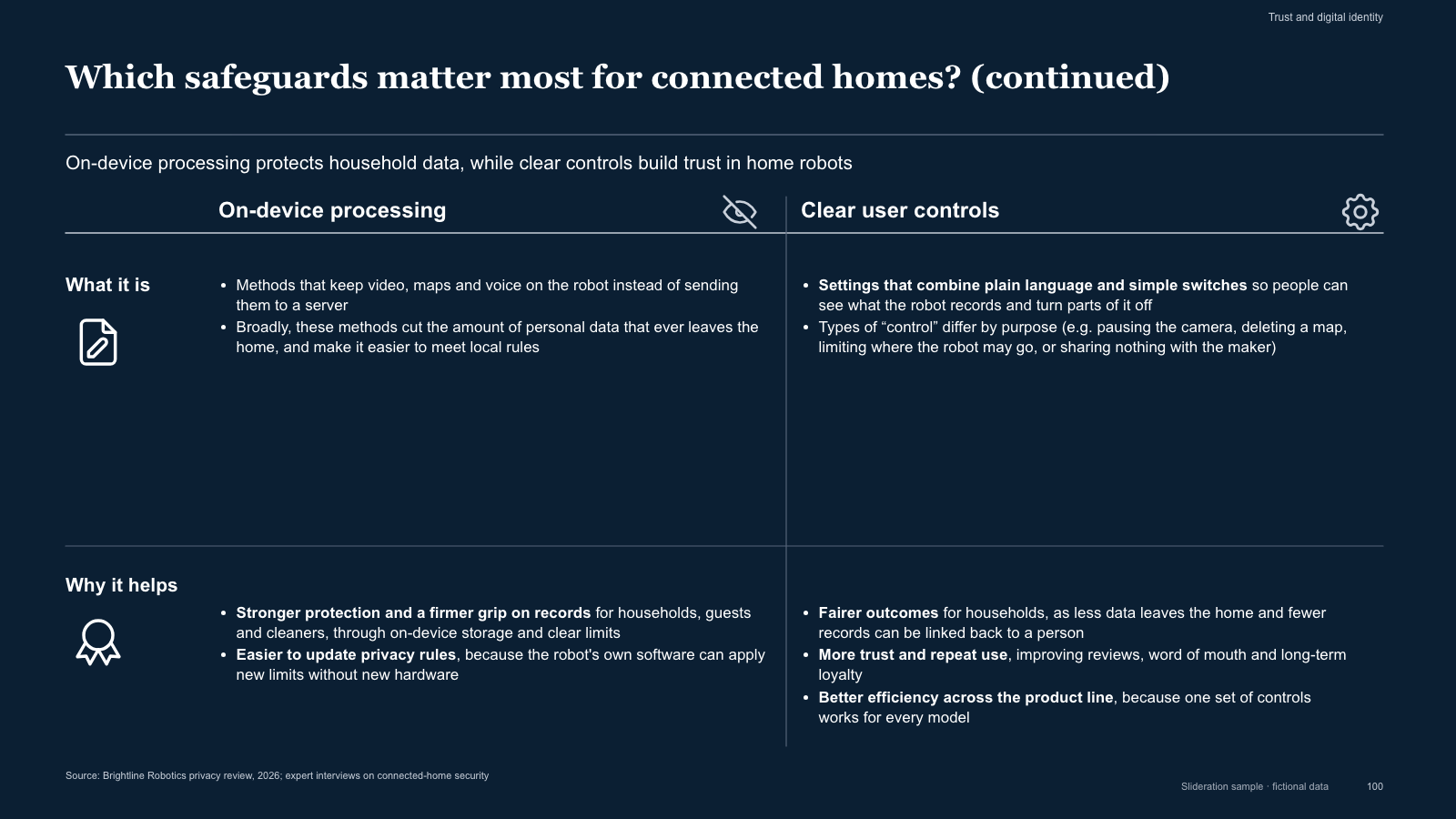
A comparison slide sets two or more things side by side so the differences do the talking. Its whole credibility rests on one thing: that both sides are described on the same terms, in the same order, at the same level of detail.
Browse 17 editable PPTX examplesor drop an image here
Search is free · searches the whole library, not just this page
No screenshot to hand?
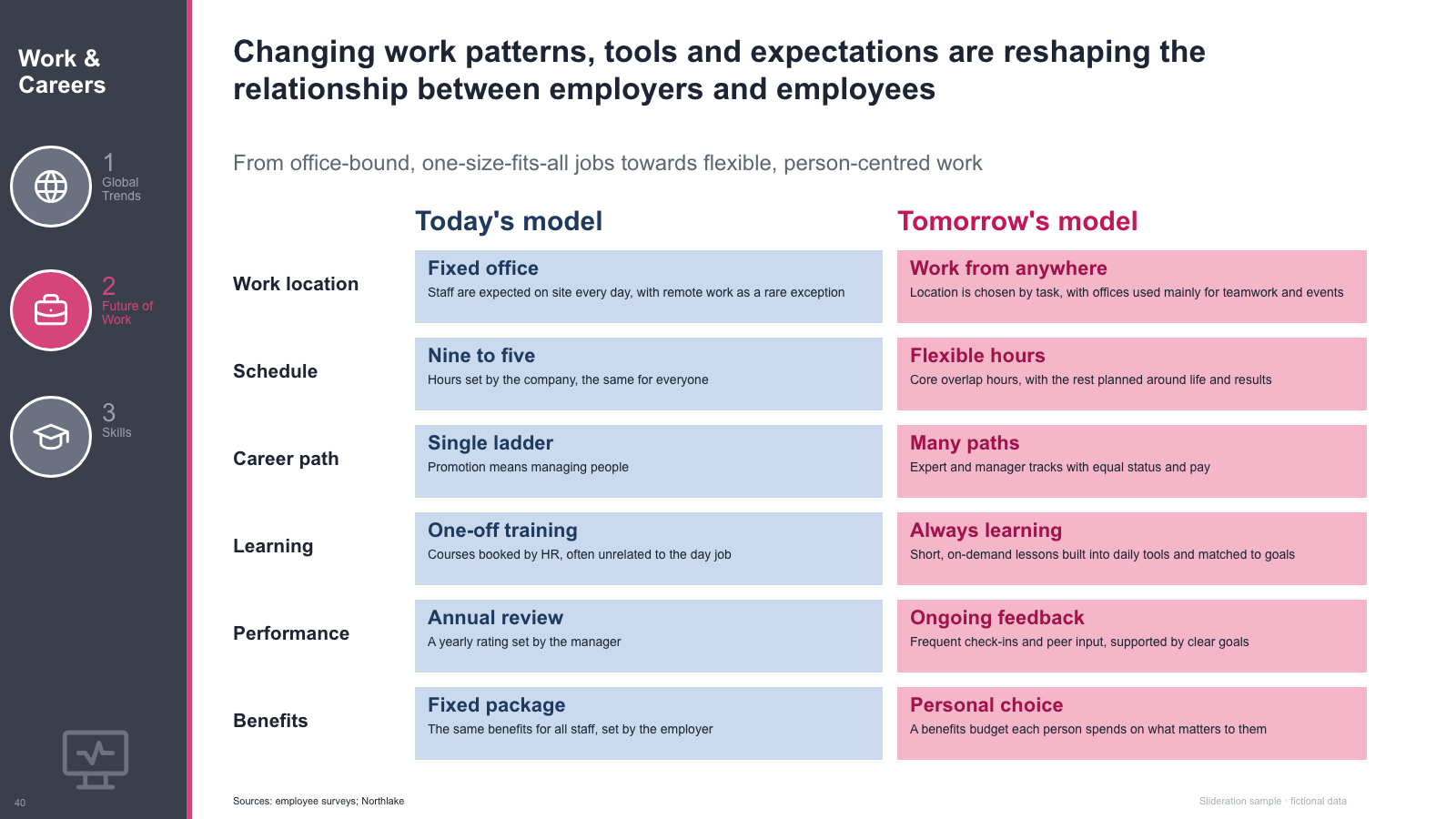
Use a comparison when the audience has to choose, or when they need to see that something changed. Options on the table, current state against target state, legacy against replacement, before against after.
Comparisons are also the right shape when you want to pre-empt an objection. Laying out the pros and the cons of your own recommendation is more persuasive than a one-sided case, because it shows the trade-off was priced in rather than missed.
Two columns is the natural form; three is workable; four starts becoming a table. Past three options, switch to a table with criteria as rows — the eye tracks rows better than it tracks four parallel narratives.
Each one is redrawn from scratch with fictional sample data and comes as a native PowerPoint file — real shapes and text boxes you can edit, recolour and resize. Open an image for a full-size preview. Samples marked Free PPTX need no account; other downloads use 1 credit.
Matched by structure, not color. Download any layout as editable PowerPoint.
The library is small and growing. If nothing fits, try cropping to the part of the slide you care about.
Searching is free. 1 credit = 1 editable PPTX slide, and downloading the same slide again is free. New accounts get 2 free credits. Credits never expire.
One-time payments, no subscription. Prices in USD; taxes may apply at checkout. Payments are processed securely by our reseller and Merchant of Record, Creem. See the refund policy.
Two or three. Beyond that the columns get narrow and the reader stops comparing and starts skimming. With four or more, use a criteria table with options as columns and criteria as rows.
Describe both states against the same criteria, in the same order, at the same length. If the “after” column is twice as long as the “before” column, the slide reads as advocacy no matter how sound the analysis is.
Usually yes. Put it in the headline and highlight the column you are recommending. The exception is a slide built to frame a live decision, where the audience is meant to weigh the options themselves.
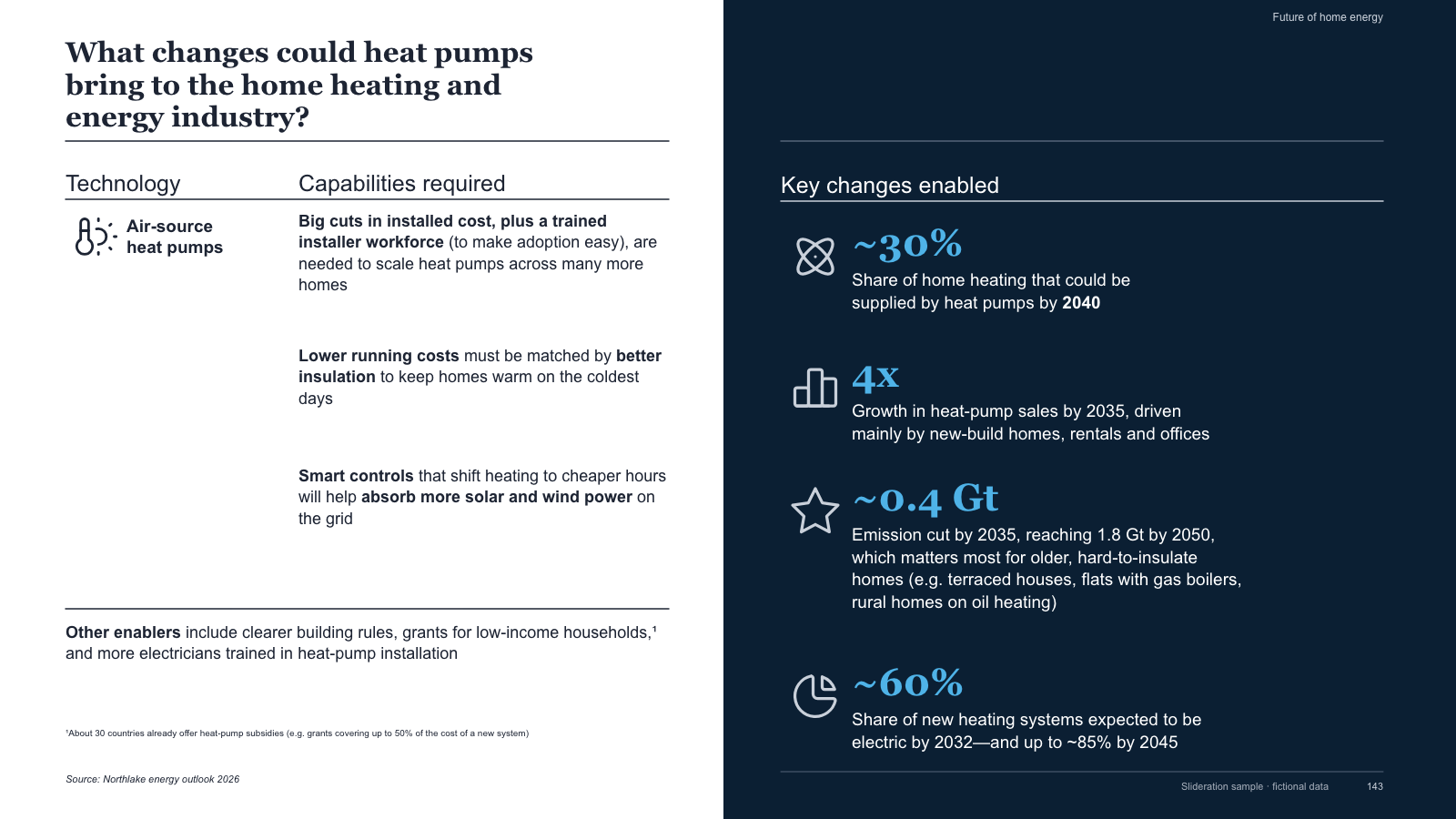
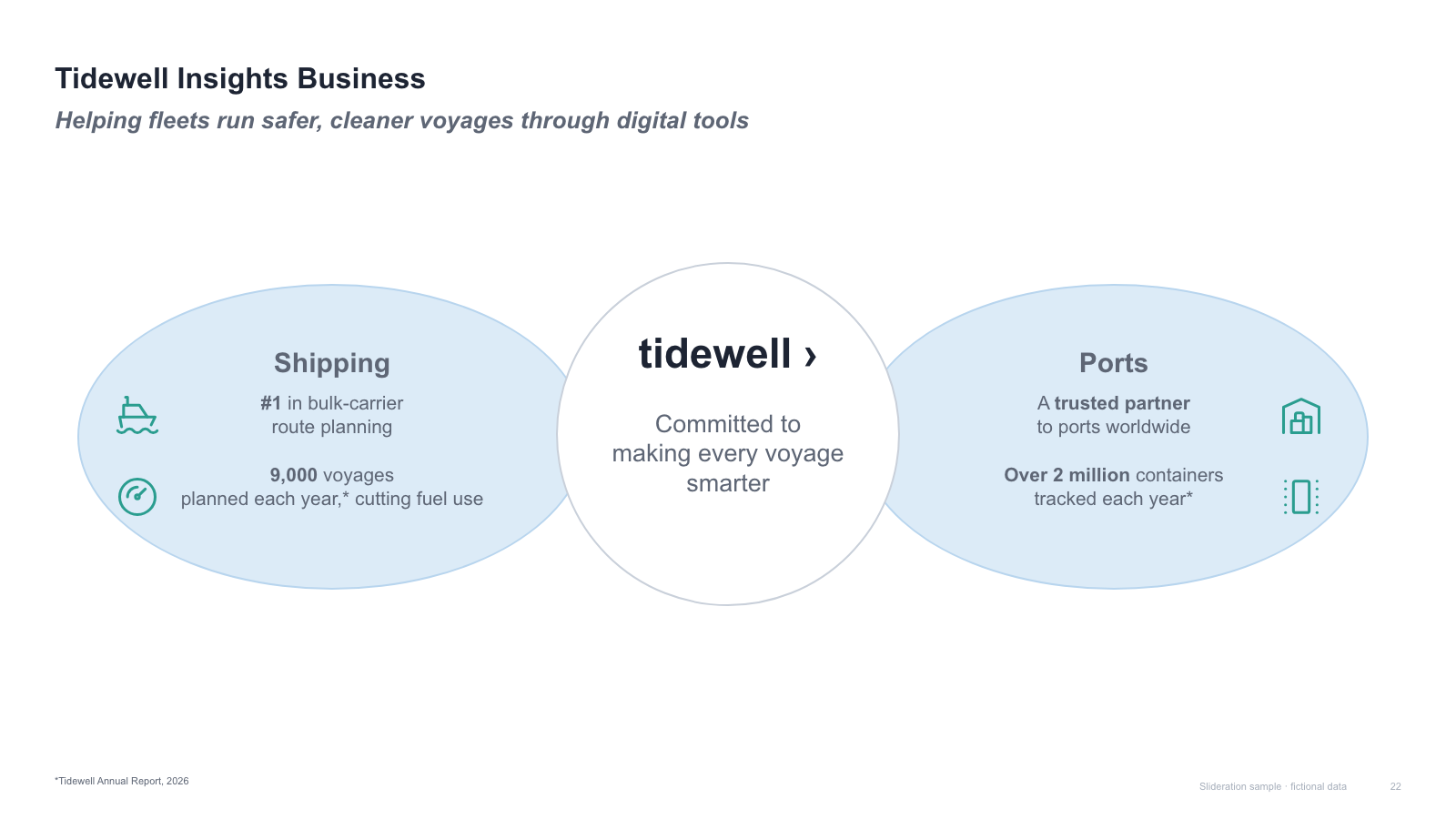
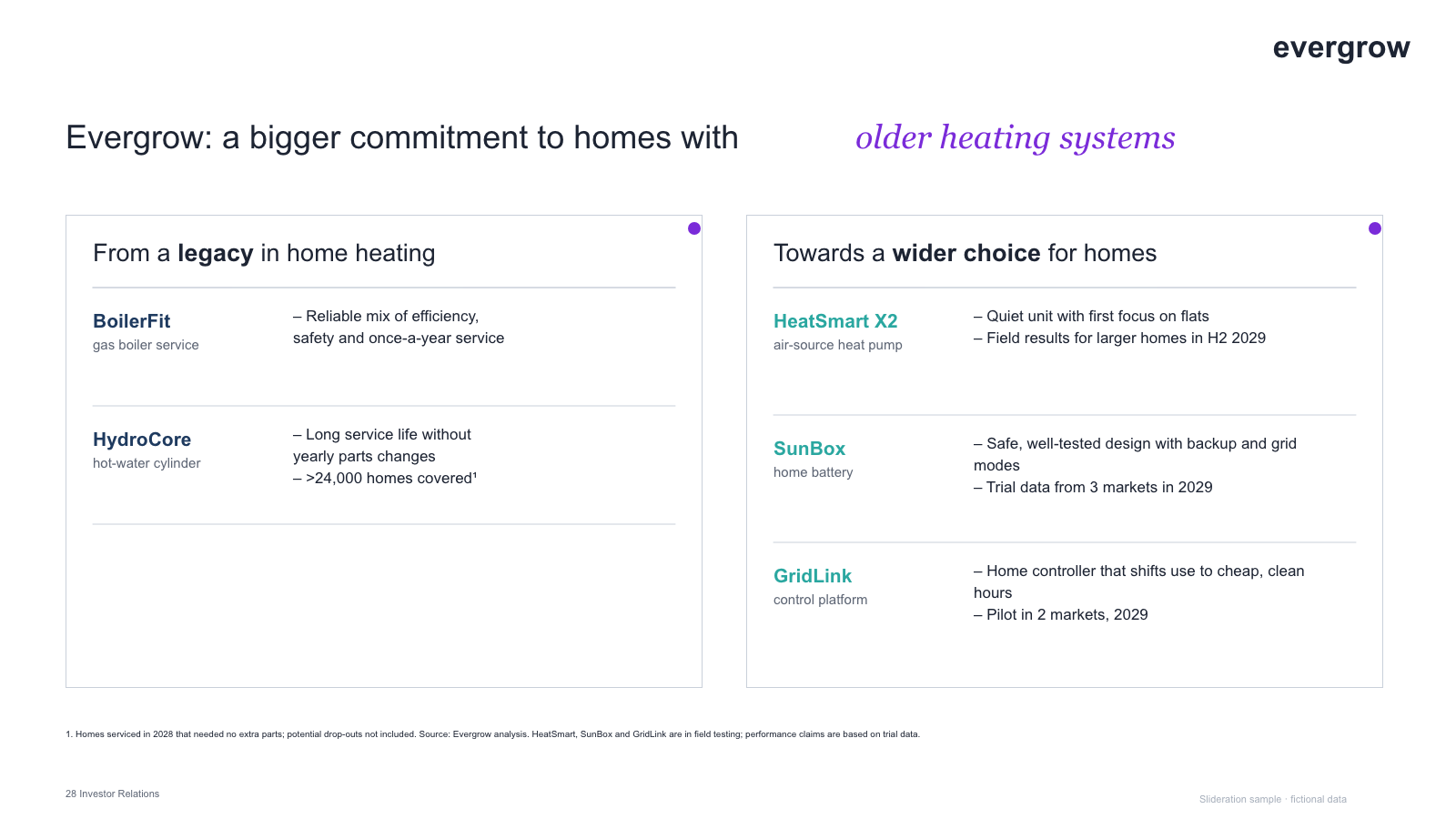
A two-column split with pros and cons stacked inside each option, or a two-panel layout with one panel per side. Both appear on this page. Keep the counts balanced — three pros against seven cons is a verdict, not a comparison.